
Sync Intervals.icu Workouts to your Garmin — A Simple Auto-Sync Guide
Make structured training easy and efficient—without stress or wasted time

Tired of spending 10 minutes exporting FIT files before every ride?
Every little bit of friction drains energy—and consistency in training depends on making things feel simple and doable. When you’re juggling work, life, and recovery, you shouldn’t have to fight with technology just to start a workout.
That’s why auto-syncing your Intervals.icu sessions to your bike computer is such a game-changer. It removes the hassle so you can focus on what truly matters: the ride, your body, and your progress.
Head straight to the 2-minute video explanation:
Structured Training
Structured training is one of the most powerful ways to improve your fitness, build consistency, and make your time on the bike more effective. Instead of guessing what to do each day, a structured plan provides your body the right stimulus at the right moment — balancing intensity, recovery, and progression.
It removes uncertainty, reduces overwhelm, and allows you to train with intention rather than reacting to how you feel in the moment. When your sessions follow a clear structure, every workout has purpose, and each week builds toward meaningful long-term change.
At Level Up Life, I enjoy helping athletes train smarter — not harder — by blending science-backed programs with easy and effective tools. That’s why I choose to work with intervals.icu.
Kathrin Fuhrer – Level up Life
Why Syncing Matters
Athletes who follow planned workouts on their bike computer
- Train with clear, specific goals (power, HR, cadence)
- Avoid over- or under-pacing intervals
- Improve training quality without second-guessing
- Develop stronger habits by maintaining consistency.
- Reduce your mental load — your device tells you exactly what to do
In this guide, you’ll learn how to automatically sync your structured workouts from Intervals.icu directly to your Garmin device — a simple setup that removes unnecessary stress and helps you stay consistent.
Auto-sync is a game-changer for cyclists, endurance athletes, and anyone who wants to follow a plan without wasting time on manual downloads or tech frustration.
1. What You Need Before You Start
Make sure you have:
- An Intervals.icu account
- A Garmin account (Garmin Connect)
- A Garmin device compatible with structured workouts (e.g., Edge, Forerunner, Fenix, etc.)
- Internet access for the initial connection
Optional but helpful:
- A basic training plan or a few workouts already created in Intervals.icu
Once these are in place, the entire process will only take a few minutes.
2. Connect Intervals.icu to Garmin (One-Time Setup)
This is the key step. Do it once, and the sync will continue automatically in the background.
Step 1: Open Settings in Intervals.icu
- Sign into your Intervals.icu account using your browser.
- Click your profile icon or name located in the top right corner.
- Choose “Settings” from the menu.
You’re now in the area where you manage all your integrations.
Step 2: Locate the Garmin „Connection“ section.
- In the settings menu, select connections and find “Garmin / Connect Garmin”.
Step 3: Authorize the Connection
- Click the Garmin Connect button.
- A window will open prompting you to log in to your Garmin account (if you’re not already logged in).
- Garmin will display a permission screen asking if you want to allow Intervals.icu to access and send workouts.
- Click “Allow” or “Agree”.
- Make sure you select „Upload planned workout“ in your connect garmin integration
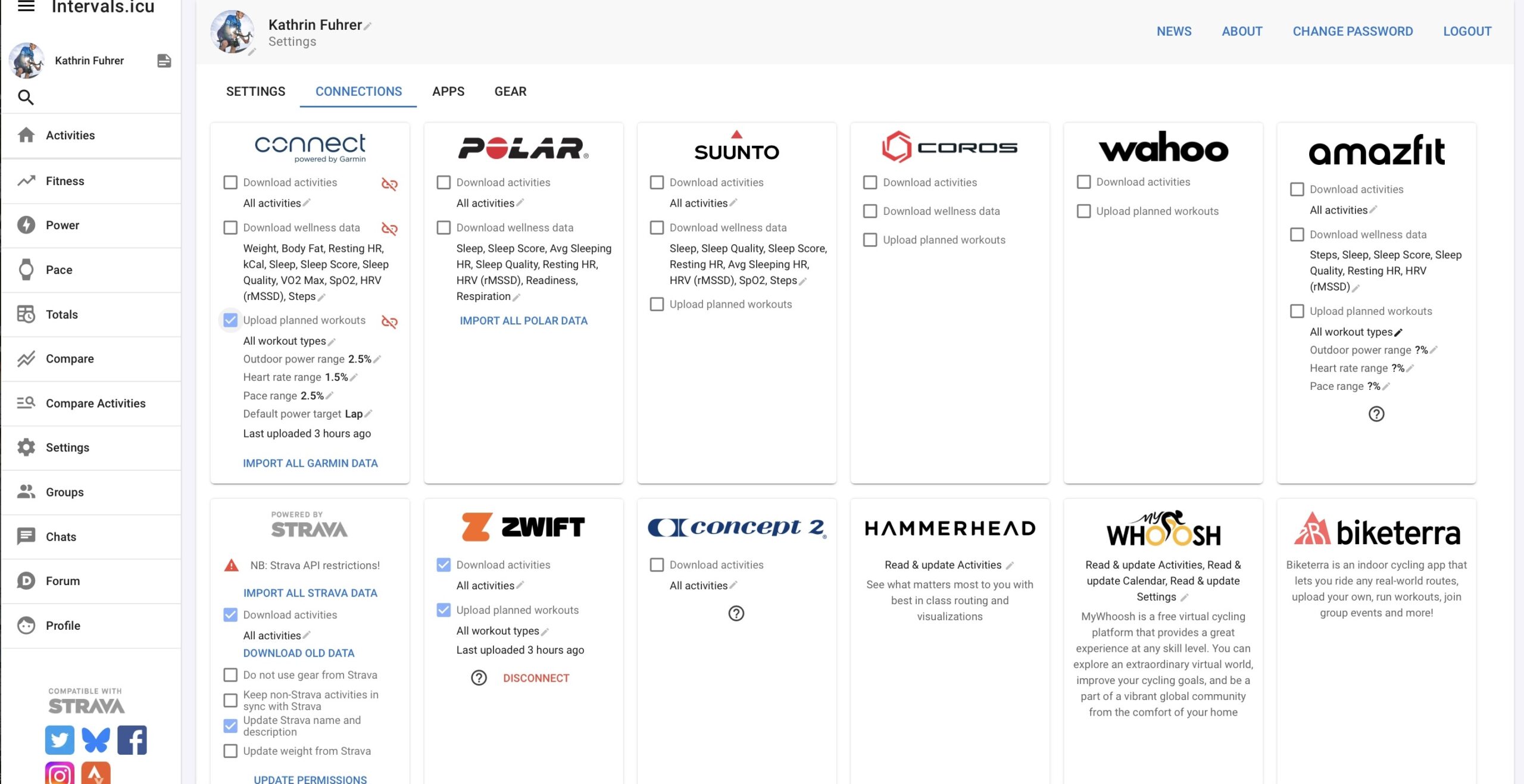
That’s it. You’ve now established a secure connection between Intervals.icu and Garmin. You don’t need to repeat this unless you manually disconnect it or switch accounts.
3. Plan Your Workouts in Intervals.icu
Now is the most important part of your training: planning sessions that help achieve your goals.
You can:
- Create a single structured workout, such as intervals at specific wattages or heart-rate zones, or
- Create a complete training week or block right in your Intervals.icu calendar.
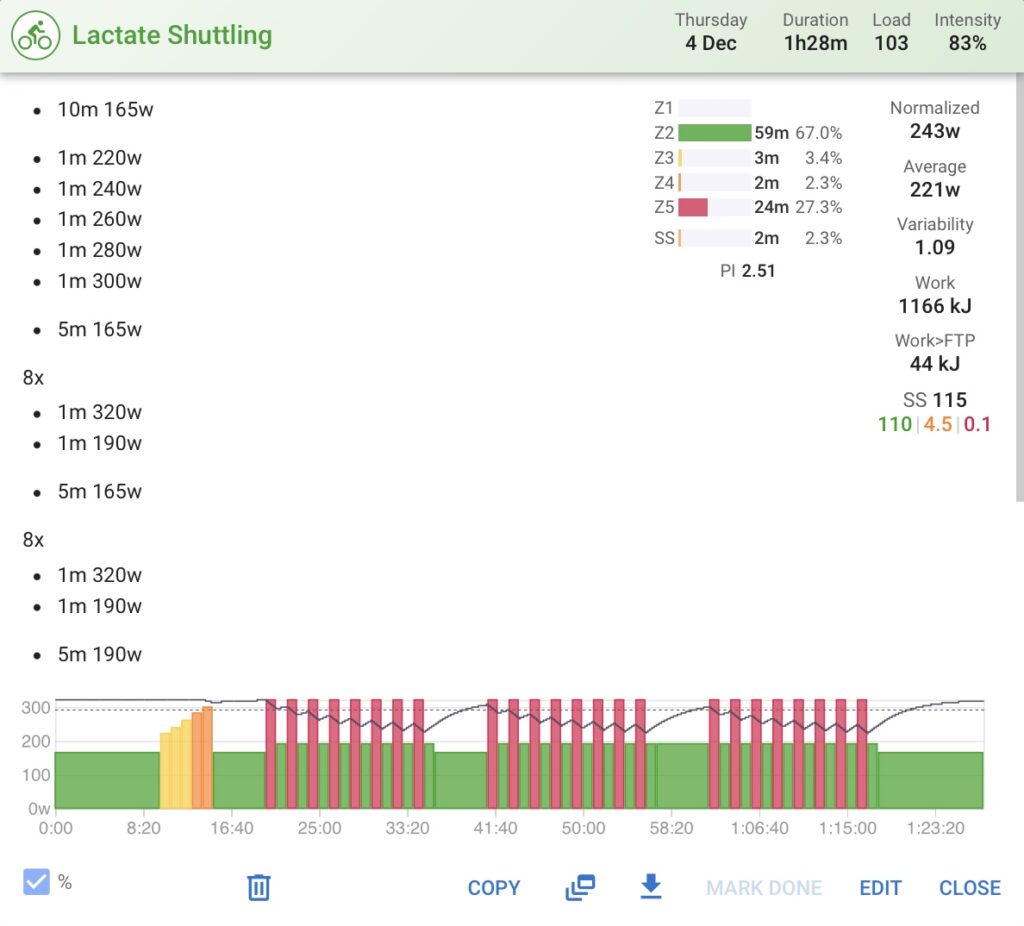
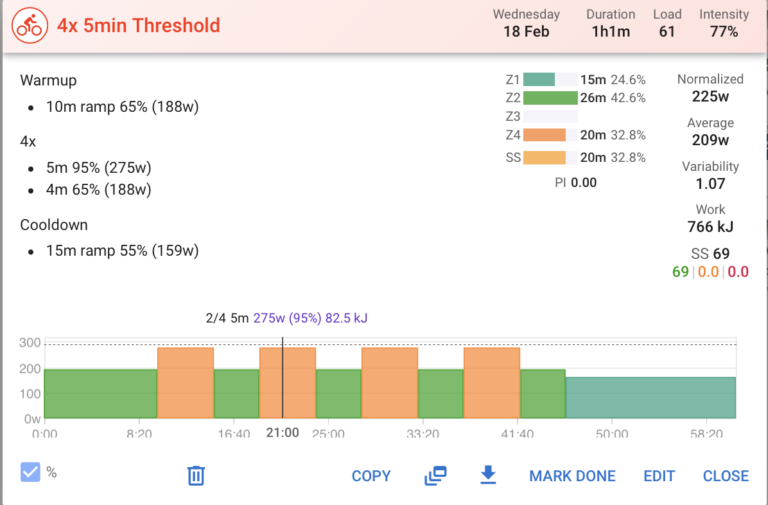
A basic example
Let’s imagine you create a session like this:
- 20-minute easy warm-up ramp
- Perform 3 sets of 8 repetitions, each lasting 1 minute on, followed by 1 minute off, with a 5-minute break between sets.
- 10-minute cool-down
You add this to your calendar on Thursday.
Since Garmin is now connected, Intervals.icu will automatically send this planned workout to Garmin.
You don’t have to export anything.
Plan the workout, save it, and let the system handle the rest.
Create your Intervals.icu account here and try the auto-sync setup.
4. Where to Find Your Workouts on Your Garmin
Once the sync is active and a workout is scheduled, it will show up on your Garmin device.
Step 1: Sync Your Garmin Device
Ensure your Garmin has recently synced through:
- Garmin Connect app on your phone, or
- Wi-Fi (if your device supports it), or
- USB cable and Garmin Express on your computer
Usually, this happens automatically when your phone is nearby and Bluetooth is on.

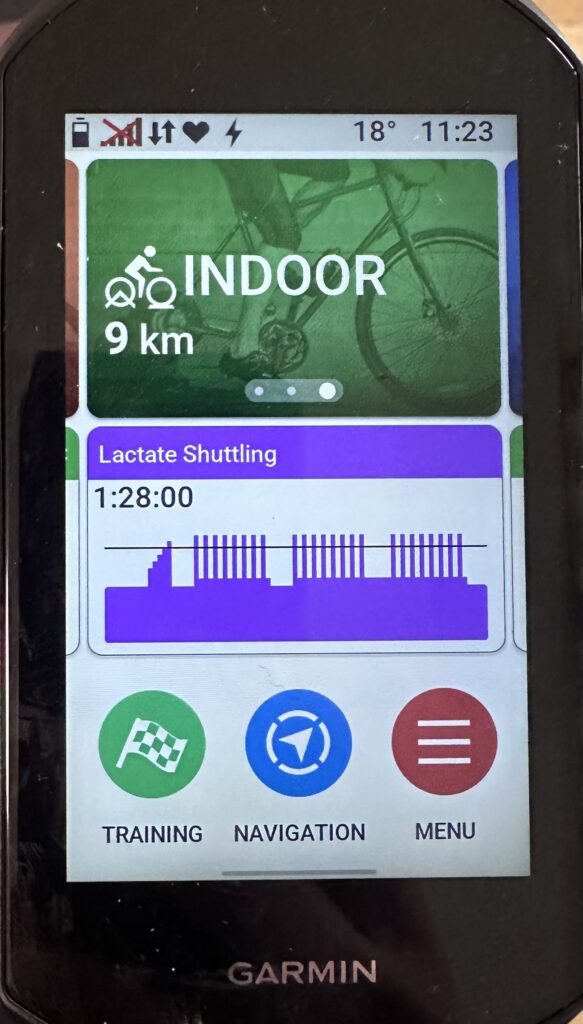
Step 2: Access the Workout Menu on Your Garmin
On most Garmin devices, you’ll find your structured workouts here:
- Turn on your Garmin device.
- Go to Training (sometimes called “Training & Planning”).
- Select Workouts.
- Search for the workout by date or name — it should match what you entered in Intervals.icu.
You can now:
- Preview the steps.
- Check intervals, durations, and targets.
- Begin with the workout when you’re ready.
Your device will now guide you through every step.
- It will tell you when to increase or decrease intensity
- It will show you targets (power, heart rate or pace)
- It will signal interval changes with beeps and on-screen prompts
This allows you to concentrate entirely on your effort, breathing, and technique, rather than worrying about what comes next.
7. Troubleshooting: What to Do If the Workout Doesn’t Appear
If a workout isn’t showing up on your device, check this:
Is your Garmin still connected to Intervals.icu?
Navigate to Settings and confirm the Garmin connection is active.
Did you recently sync your device?
- Open the Garmin Connect app and manually sync.
- Or connect using Wi-Fi or USB if necessary.
Is the workout scheduled for the future and properly saved?
- Check the date and time in your Intervals.icu calendar.
- Make sure the workout is assigned properly.
Restart your Garmin device.
Sometimes, a simple restart helps new workouts appear correctly.
If all else fails, you can temporarily resort to manual export, but in most cases, the steps above fix the issue.
8. Final Thoughts
Good training isn’t just about intensity and volume; it’s also about how you craft your environment.
- Less friction.
- Fewer decisions.
- More clarity and support.
By connecting Intervals.icu directly to your Garmin, you establish a training setup that respects your time, energy, and focus.
You plan once.
Your workouts appear where you need them.
You get to ride, recover, and enjoy life — with more ease.
Try it yourself and start your auto-sync now: Create or log into your Intervals.icu account and try the auto-sync set up with your Garmin device. It takes just a few minutes and makes your training flow much easier.
Want More Clarity And Structure In Your Training?
Level Up Life is all about that: Simplifying Life and focusing on what’s best for you. If you’re ready for more ease, more consistency, and more confidence in your training, and building a sustainable and personalised training system that truly fits your life, I’m here to help you find your flow.
Comment below or send me a message to kathrin@leveluplife.ch




Excellent instructions. Thanks!
Just wanted to add that: On my Garmin (1030) head unit, the newly added workout was not under the “Workouts” tab. It appeared under “Training Plan” tab.
I guess it may depend on which model or version Garmin Edge unit one has.
Thank you Giuseppe, it does depend yes. So that’s great we know all the options, thanks for sharing